


Read The Bleepin’ Manual
Yo, External Vids & Stuff
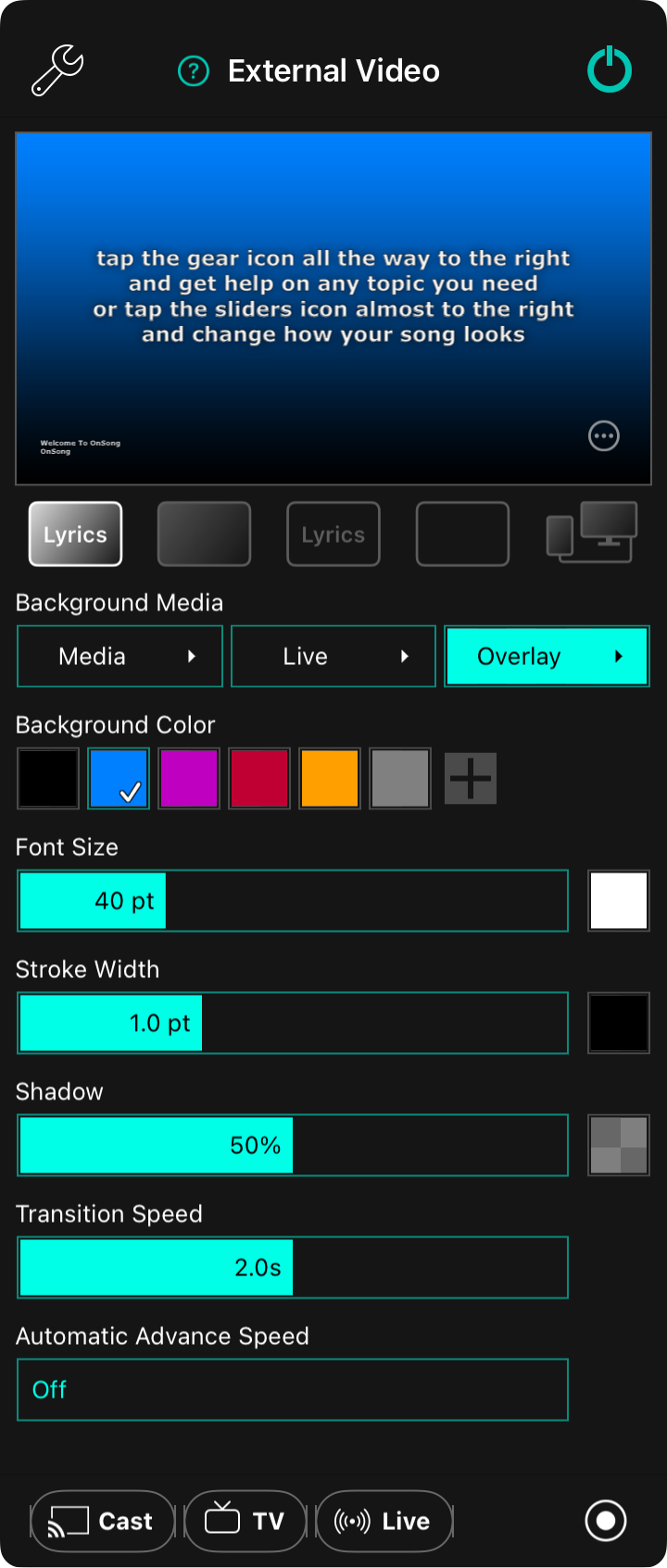
The Fancy Video Menu™ is basically how you make Lyriken-Projektion happen, or flip into Bühnenmonitor-Modus in OnSong. Buckle up, peeps — there's a LOT of buttons.
Fiddly Bits & Bobs
Tap that wrench icon up in the corner like you're fixing something (spoiler: you're not) to dive into Externe Video-Einstellungen straight from this menu.
The Sneak Peek
Top of the menu shows you what's gonna show up on that external screen. Tap the preview & flip through lyric sections like you're actually previewing something. Plot twist: this doesn't PUT lyrics on the external device. You gotta tap 'em in the song viewer instead. We know, we know. Confusing AF.
Showtime Options
Tap that circle-with-dots icon in the bottom-right corner of the preview to unlock a secret menu with even more options. Plot twist: there's always more options.
The Mood Ring Buttons
Five magical buttons below the preview let you control which vibes get blasted to the external screen — lyrics, background, or both. The fifth one? That's your stage monitor panic button.
- Lyriken & Hintergrund throws the lyrics on whatever colorful/gradient/image-y/video-y background you picked.
- Nur Hintergrund nukes the lyrics but keeps the pretty stuff. It's giving "silent contemplation."
- Nur Lyriken strips away EVERYTHING except the words. Minimalist energy.
- Abdunkelungsmodus kills it all. Just black. Cold. Dark. Existential.
- Bühnenmonitor-Modus turns on Bühnenmonitor-Modus by itself, totally separate from the lyrics projection stuff.
Die Background-Layer Situation
Your lyrics background is built from layers stacked on top of a color base. Tap any button to toggle it on/off, or long-press/tap the arrow to configure it. Welcome to complexity theater.
Medien
Pick still images or motion graphics to go behind your lyrics. Tap to toggle, long-press to configure. Opens the Medien-Auswahl. Living your best visual life, we suppose.
Live
BOOM. Live video from your camera, with optional effects to make YOU the star. Perfect for online audiences, video calls, or when you need like, five camera angles on stage. Configure all this sparkle in the Live-Video-Konfigurations-Editor.
Überlagerung
Throw a colored texture layer on top for readability & ~aesthetics~. Tap to toggle, configure in the Überlagerungs-Auswahl. You're welcome, your retinas.
Look & Feel (& How Fast Things Go Whoooosh)
Bottom half of the screen is all the sliders that control how your lyrics look when they show up.
Hintergrundfarbe
Pick a color: black, blue, purple, red, goldenrod, grey. Or don't. You can add custom colors or remix the palette with the Farbauswahl. Live your truth.
Schriftgröße
Font size slider: 24 to 84 points. Default is 40 (very normal, very reasonable). If you turned on "Adjust Lyrics To Fit" in Lyriken-Projektion-Einstellungen, the font will cap itself so lines don't wrap like a toddler's art project.
Right side has a Farbauswahl to pick text color. Default: white. Shocking.
Konturenbreite
That's the border around each letter. White text + black outline = chef's kiss readability. Slide it 0–3 points. Default: 1. It's not much, but it's honest work.
Right side: another Farbauswahl for the outline color. Default: black. Riveting stuff.
Schatten
Blurry shadow behind the text to make it pop off the background. Slider adjusts shadow radius as a % of font size, 0–100%. Default: 50%. Science!
Right side: Farbauswahl for shadow color. Default: 50% see-through black. Très sophisticated.
Übergangsgeschwindigkeit
How fast lyrics & backgrounds swap. 0–4 seconds. Default: 2.0. Go too fast on old/wireless hardware and you'll get lag. Don't say we didn't warn you.
Automatische Weiterschaltgeschwindigkeit
Makes slides auto-advance after a delay. Off by default (for your sanity). Set it 1–60 seconds per slide if you're feeling spicy.
Wohin Mit All Diesem Video?
External video goes places. Bottom bar = your routing options:
Google Cast
Bottom left: tap Cast to hook up to Google Cast devices on your Wi-Fi. Tap again to disconnect. Button glows red when you're connected. It's basically magic, except we all know how it works.
Smart TVs
Connect to OnSong Display app TVs or AirPlay video receivers like AppleTV. Living that smart home life.
Live-Übertragung
Tap Live to open Live-Übertragung. Sends your lyrics/stage monitor to NDI® receivers or streaming services (YouTube, Facebook, etc.). Button turns red while you're live. This is DIFFERENT from the Live media layer — that one adds camera video. We know it's confusing. Story of our lives.
Übertragung
Bottom right: button that does app-to-app broadcast on iPad/iPhone. Sends video to compatible apps for streaming (Facebook, Zoom) or recording to your camera roll. It's like sharing, but make it tech.
Pro tip: You can run lyrics projection & stage monitor AT THE SAME TIME. Stage monitor goes to HDMI/VGA/AirPlay (wired/whatever), while lyrics projection keeps workin' on wireless stuff like Google Cast or Connected TVs. On macOS, both modes get separate windows that you can hide/show & full-screen to your heart's content. We're not flexing, but… we kinda are.


